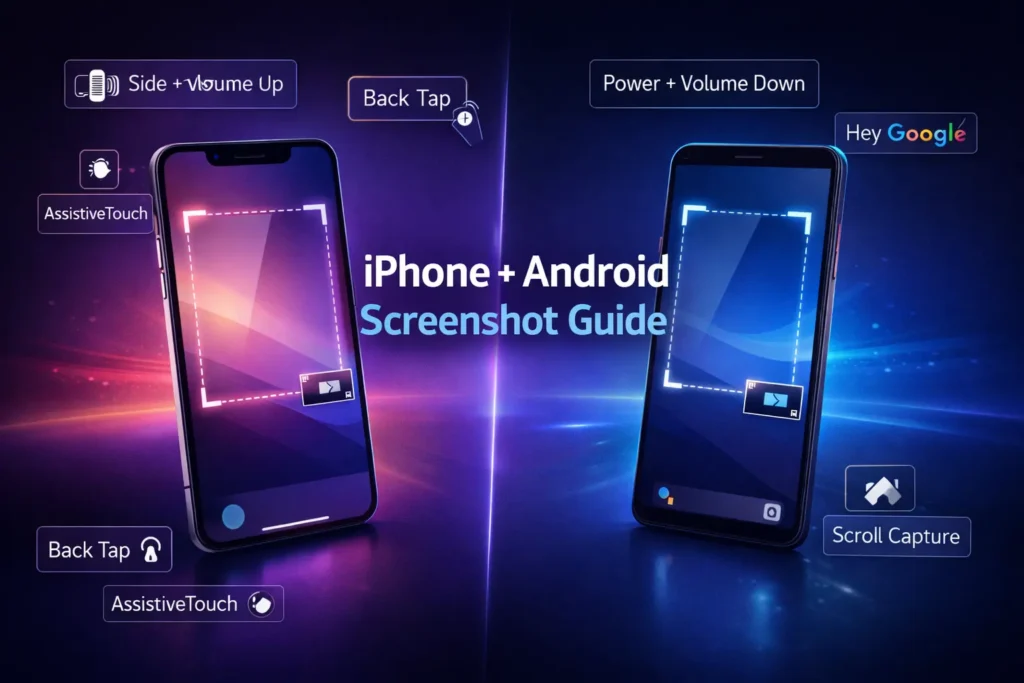
Screenshots are one of the fastest ways to save anything on your phone, from a payment confirmation and online ticket to a funny chat message, error screen, or important settings page.
But here’s the catch: different iPhone and Android models use different button combinations. Some even support gesture-based screenshots and scrolling screenshots for long pages.
This guide covers every working method to take a screenshot on iPhone and Android, plus where screenshots are saved and how to edit or share them instantly. Want to know about taking screenshots on mac and windows check out this article, How to Screenshot on Mac & Windows (Complete Step-by-Step Guide)
✅ How to Screenshot on iPhone (All Methods)
iPhones have two main types:
- iPhones with Face ID (no Home button)
- iPhones with Touch ID (Home button)
Let’s cover both.
1) Screenshot on iPhone (Face ID Models)
✅ Works on: iPhone X, XR, XS, 11, 12, 13, 14, 15 series and newer (no Home button)
Button Combination
Side Button + Volume Up
Step-by-step
- Open the screen you want to capture
- Press the Side button and Volume Up button together
- Release quickly (don’t hold)
- A screenshot thumbnail appears in the bottom-left corner
- Tap it to edit or swipe it away to save
2) Screenshot on iPhone (Home Button Models)
✅ Works on: iPhone SE (1st/2nd/3rd gen), iPhone 6, 7, 8 and older
Button Combination
Home Button + Side Button
(or Home Button + Top Button on older models)
Step-by-step
- Open what you want to capture
- Press Home + Power (Side/Top) button together
- Release quickly
- Screenshot gets saved automatically
3) Screenshot on iPhone Using AssistiveTouch (No Buttons)
Perfect if your buttons are not working or you want a one-tap method.
Enable AssistiveTouch
- Go to Settings
- Tap Accessibility
- Tap Touch
- Tap AssistiveTouch
- Turn it ON
Take Screenshot with AssistiveTouch
- Tap the floating AssistiveTouch button
- Go to Device
- Tap More
- Tap Screenshot
✅ Your iPhone will capture the screen instantly.
4) Screenshot on iPhone Using Back Tap (Super Cool Feature)
✅ Works on: iPhone 8 and newer (iOS feature)
Enable Back Tap Screenshot
- Open Settings
- Go to Accessibility
- Tap Touch
- Scroll down → Back Tap
- Choose Double Tap or Triple Tap
- Select Screenshot
Now just double-tap/triple-tap the back of your iPhone to take a screenshot.
📌 Where iPhone Screenshots Are Saved
All screenshots go to:
✅ Photos App → Albums → Screenshots
✅ How to Screenshot on Android (All Methods)
Android screenshots depend on your phone brand (Samsung, OnePlus, Xiaomi, Pixel, Vivo, Oppo, etc.) but the most common method works on almost every Android device.
1) Screenshot on Android Using Buttons (Most Common)
Button Combination
Power Button + Volume Down
Step-by-step
- Open the screen you want to capture
- Press Power + Volume Down together
- Release quickly
- A preview/toolbar will appear (edit/share options)
✅ Works on most Android phones.
2) Screenshot on Samsung Galaxy (Palm Swipe Method)
Samsung includes a handy gesture where you swipe your hand across the screen.
Enable Palm Swipe Screenshot
- Go to Settings
- Tap Advanced Features
- Tap Motions and gestures
- Enable Palm swipe to capture
Use it
Swipe the edge of your palm across the screen (left → right or right → left)
✅ Screenshot captured without pressing buttons.
3) Screenshot Using Android Quick Settings (Shortcut Button)
Most Android phones have a screenshot button in the Quick Settings panel.
Step-by-step
- Swipe down from the top to open Quick Settings
- Look for Screenshot or Screen Capture
- Tap it
- Screenshot is taken instantly
If you don’t see it:
- Tap the Edit (pencil icon)
- Add the Screenshot toggle
4) Screenshot on Android Using Google Assistant
This method is useful when your buttons are broken.
Step-by-step
- Open the screen you want to capture
- Activate Assistant:
- Say “Hey Google”
- Or hold the Power button (depending on your phone)
- Say: “Take a screenshot”
✅ The screenshot will be taken and you can share it directly.
5) Take a Scrolling Screenshot on Android (Full Page Screenshot)
This is perfect for capturing:
- Long articles
- Chat conversations
- Full web pages
- Long settings menus
Step-by-step
- Take a screenshot normally (Power + Volume Down)
- On the preview toolbar, tap:
- Scroll Capture
- or Capture More
- or a down arrow icon (↓) (varies by brand)
- Keep tapping until you capture the full page
- Save it
✅ Available on most Samsung, OnePlus, Xiaomi, and many other Android devices.
📌 Where Android Screenshots Are Saved
Usually saved in:
✅ Gallery / Photos App → Screenshots
OR file path:
Internal Storage → Pictures → Screenshots
If you use Google Photos, they may appear automatically there too.
✨ Editing & Sharing Tips (iPhone + Android)
✅ Instant edit: Tap the screenshot preview to crop, draw, blur, or add text
✅ Share quickly: Use the Share icon from the preview
✅ Organize screenshots: Create an album called “Work”, “Receipts”, or “Tutorials”
✅ Clear storage: Screenshots can pile up fast, delete old ones regularly
✅ Quick Shortcut Summary (Cheatsheet)
iPhone Screenshot Shortcuts
- iPhone Face ID: Side + Volume Up
- iPhone Home button: Home + Power
- AssistiveTouch: Menu → Screenshot
- Back Tap: Double/Triple tap back
Android Screenshot Shortcuts
- Most Android: Power + Volume Down
- Quick Settings: Tap Screenshot
- Samsung gesture: Palm swipe
- Assistant: Hey Google → Take a screenshot
- Scrolling screenshot: Scroll Capture / Capture More
✅ FAQs
1. How do I take a screenshot on iPhone?
On most iPhones with Face ID, press Side Button + Volume Up together and release quickly. On iPhones with a Home button, press Home + Power.
2. How do I take a screenshot on Android?
On most Android phones, press Power + Volume Down at the same time. The screenshot will be saved in your Gallery or Photos app.
3. How can I screenshot without using buttons?
On iPhone, enable AssistiveTouch or use Back Tap. On Android, use Google Assistant by saying “Take a screenshot” or use the Quick Settings Screenshot button.
4. How do I take a scrolling screenshot on Android?
Take a normal screenshot, then tap Scroll Capture or Capture More on the toolbar to capture the full page.
5. Where are screenshots saved on iPhone and Android?
On iPhone, screenshots are saved in Photos → Albums → Screenshots. On Android, they’re usually saved in Gallery/Photos → Screenshots or Internal Storage → Pictures → Screenshots.
Final Thoughts
Screenshots are a simple feature, but once you learn the fastest method for your phone, it becomes a daily superpower. Whether you’re using an iPhone or Android, you can capture your screen using buttons, gestures, shortcuts, or even voice commands.