You start your laptop, open a ton of browser tabs, make video calls etc. but how do all of these happen and how do the digital system make it work altogether, many times the system starts to hang or even stops completely, so where does these problems come from RAM? or CPU? or Storage?. Lets discuss all these technical terms, how they work together and their specifications in this detailed article, this article will also help you to make a smart choice when you buy your pc/laptop or even smartphone the next time.
RAM
RAM(also termed as memory) stands for Random Access Memory, it is fast, volatile(temporary) memory used by the OS(Operating System) and applications when they are running. Basically the programs and applications that are currently active/running in the system are stored in RAM so their data and code can be accessed quickly by the CPU. When you double-click/open a program, the OS loads the program(required parts of the program) from Storage to RAM so that the CPU can access the data and codes as quickly as possible.
Every Digital computer be it a laptop, desktop, smartphones or even IoT devices and Smart TVs have RAM, their shape and capacity can be different but they use RAM to run programs/applications.
Why is RAM important:
- Multitasking: RAM allows you to keep multiple apps/tabs open without swapping
- App Responsiveness: Programs perform better when they have enough memory in RAM to hold their data and code.
- Speed: The main reason of RAM being in the middle of the CPU and Storage is that RAM is very fast then compared to Storage, CPU time is very precious and should not be wasted, Storage(HDD/SSD) are much slower compared to RAMs so that is why the active programs are bought into RAM so that CPU time is not wasted and program’s data is available very quickly, below you will find a table comparing Access time between RAM and Storage.
| Component | Typical Access Time | Measured In | Relative Speed | What This Means in Real Life |
|---|---|---|---|---|
| RAM (DDR4 / DDR5) | ~10–100 nanoseconds (ns) | Nanoseconds | ⭐⭐⭐⭐⭐ (Fastest) | Data is available almost instantly. Apps feel responsive, multitasking is smooth, and switching between tabs is seamless. |
| NVMe SSD | ~20–100 microseconds (µs) | Microseconds | ⭐⭐⭐⭐☆ | Extremely fast storage. Operating system boots quickly, apps open fast, and file transfers are near-instant for most users. |
| SATA SSD | ~100–300 microseconds (µs) | Microseconds | ⭐⭐⭐☆☆ | Much faster than HDDs, but slower than NVMe. Still a huge upgrade for everyday use. |
| HDD (7200 RPM) | ~5–10 milliseconds (ms) | Milliseconds | ⭐☆☆☆☆ (Slowest) | Mechanical delay causes slow boot times, lag when opening apps, and noticeable pauses during file access. |
| HDD (5400 RPM) | ~10–15 milliseconds (ms) | Milliseconds | ⭐☆☆☆☆ | Even slower due to lower rotation speed. Common in older or budget laptops. |
Types of RAM
- Static RAM: Static RAM stores data using flip-flop circuits and does not need to be refreshed constantly. SRAM is primarily used inside CPU as Cache memory(L1, L2, L3) and are very expensive and super fast.
- Dynamic RAM: Dynamic RAM stores data in capacitors and must be refreshed thousands of times per second, it is the main memory in the system and is slower than SRAM. Mostly when someone talks about RAM, it is this RAM that is also termed as Main Memory and is the layer between CPU and Storage. There are different generations/types of DRAM, some of them being(DDR below stands for Double Data Rate):
- DDR3 RAM
- Older generation DRAM used in legacy systems. Limited speed and efficiency.
- DDR4 RAM
- The most widely used system memory for many years, offering good performance and stability.
- DDR5 RAM
- Newer DRAM standard with higher bandwidth, better power management, and improved multitasking support.
- LPDDR (Low Power DDR)
- DRAM optimised for mobile devices and thin laptops, prioritizing battery life over upgradeability.
- DDR3 RAM
Quick takeaway for beginners
- SRAM = ultra-fast, tiny, expensive (CPU cache)
- DRAM = slightly slower, large, affordable (system RAM)
NOTE that the classification of RAM can be much deeper and is a very large topic in itself.
RAM generally comes in even numbers like one stick of RAM can be of 4GB, 8GB, 16GB, 32GB etc. and many times the configuration in systems are a pair of RAM sticks(may or may not be of same size) are installed into the motherboard. Choosing the RAM for your system depends on the work you will use your system for, for general users 8-16GB of RAM is normally sufficient while for heavy gamers or video editors require higher RAM like 32GB or higher.
Storage
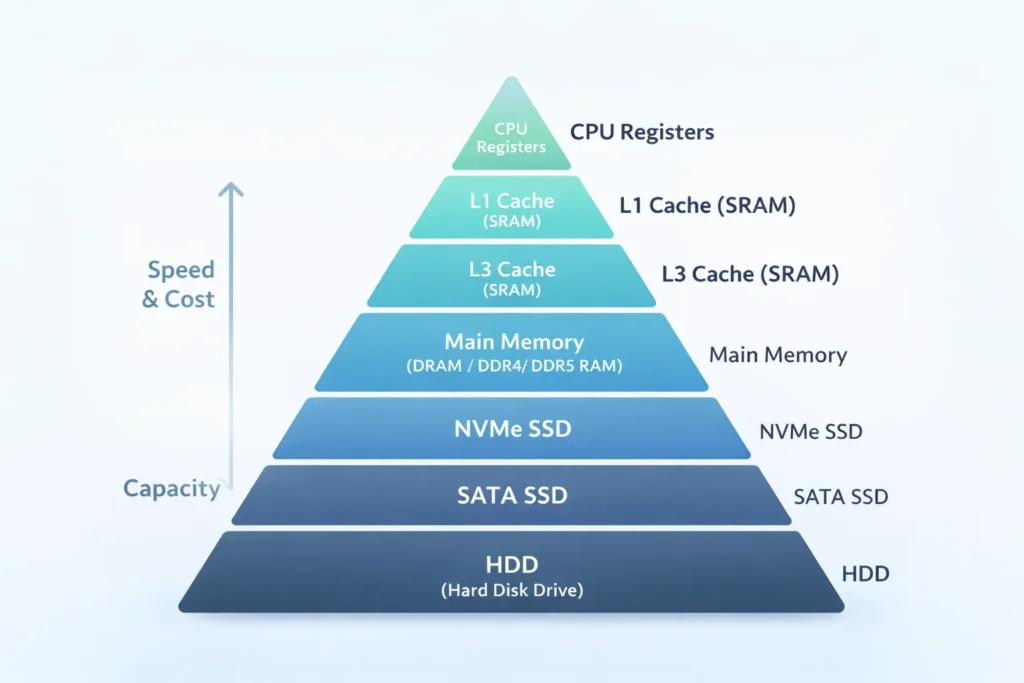
No matter how fast the RAM is but it is Volatile memory, meaning that once the power is turned off all the data in RAM is erased, so data is not persistent in RAM. Here comes Storage, it is the slowest but largest and least expensive form of memory in our system, Storage is where all our files, data and programs live permanently, even when the system if powered off the data in storage still persists.
Types of Storage
- HDD (Hard Disk Drive): These are mechanical disk with spinning platters. High capacity per dollar, but relatively slow (longer seek times). Good for mass storage where speed isn’t critical.
- SSD(Solid State Drive): Uses flash memory, no moving parts. Much faster than HDDs for booting and loading apps. Two common interfaces:
- SATA SSD: Replaces HDDs in many laptops; faster than HDD but limited by SATA interface.
- NVMe SSD (PCIe): Uses PCIe lanes and NVMe protocol—far faster for sequential and random access. Ideal for OS boot drives and applications that benefit from rapid I/O.
Older devices had only HDD but now most devices either use SSD only or are hybrid using both HDD and SSD for better performance.
Why storage speed matters
- Boot time and app load: A fast NVMe SSD can dramatically reduce boot and app load times.
- File transfers: Large files (videos, backups) copy much faster on NVMe vs SATA vs HDD.
- Swap/page usage: When RAM is insufficient, the OS uses storage; a fast SSD reduces the penalty of swapping.
Note that as the memory/storage becomes faster the size becomes smaller and cost increases and vice versa.
Processor(CPU)
CPU(Central Processing Unit) or the Processor, often termed as the “Brain of the Computer”, executes program instructions. The processor is where all the processing and calculations are done. It performs arithmetic, logic, control, and input/output (I/O) operations defined by software. CPU performance depends on several interacting factors—not just clock speed. All the code written inside a software are executed inside the CPU.
Key concepts
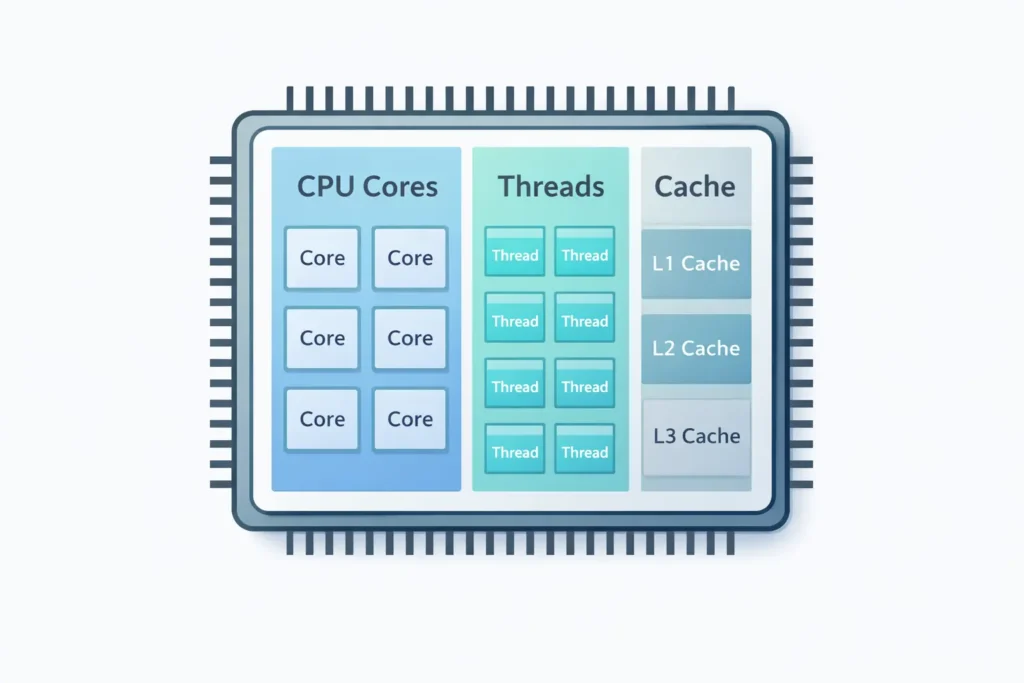
- Cores and threads: A core is an independent processing unit. Threads are virtualized paths that let a core handle multiple sequences of instructions (simultaneous multithreading/Hyper-Threading). More cores/threads help parallel workloads (video encoding, heavy multitasking).
- Clock speed (GHz): Indicates cycles per second. Higher clock generally means faster per-core performance, but architecture and instructions-per-cycle (IPC) matter too.
- IPC (Instructions Per Cycle): How many operations a core can perform in a single cycle; modern CPUs raise performance by improving IPC, not just clock speed.
- Cache (L1, L2, L3): Very fast on-die memory that holds frequently used data to reduce latency; larger caches can improve performance, especially for complex tasks.
Processor Performance Factors — Comparison Table
| Factor | What It Means | How It Affects Performance | Most Important For |
|---|---|---|---|
| Number of Cores | Independent processing units inside the CPU | More cores improve multitasking and parallel workloads | Video editing, rendering, multitasking |
| Number of Threads | Ability to run multiple tasks per core | Improves efficiency in multi-threaded applications | Streaming, compiling code |
| Clock Speed (GHz) | Cycles processed per second | Higher speeds boost single-task performance | Browsing, office work, gaming |
| Instructions Per Cycle (IPC) | Work done per clock cycle | Higher IPC means better performance even at lower GHz | All workloads |
| Cache Memory (L1/L2/L3) | Ultra-fast memory inside the CPU | Reduces delays when accessing data | Games, repeated tasks |
| CPU Architecture / Generation | Design and technology level | Newer architectures are faster and more efficient | Long-term system performance |
| Manufacturing Process (nm) | Size of transistors | Smaller nodes improve power efficiency and speed | Laptops, power-efficient systems |
| Thermal Design & Cooling | Ability to manage heat | Better cooling prevents throttling | Sustained workloads |
| Power Limits (TDP / Boost) | Maximum power the CPU can use | Higher limits allow longer boost speeds | High-performance laptops, desktops |
| Memory Support & Bandwidth | RAM type and speed supported | Faster memory improves data flow | Integrated graphics, heavy multitasking |
| Integrated Graphics | GPU built into the CPU | Determines graphics performance without a discrete GPU | Casual gaming, video playback |
| Software Optimization | How well apps use the CPU | Optimized software runs faster and smoother | Professional and modern apps |
Integrated vs discrete GPU
- Some CPUs include integrated graphics (good for everyday tasks, video playback). Discrete GPUs (separate graphics cards) are essential for high-end gaming, GPU-accelerated rendering, and ML workloads.
Processors are very complex and expensive, there are complete courses and books based on Processors and its architectures.
How RAM, Storage, and Processor work together (real flows)
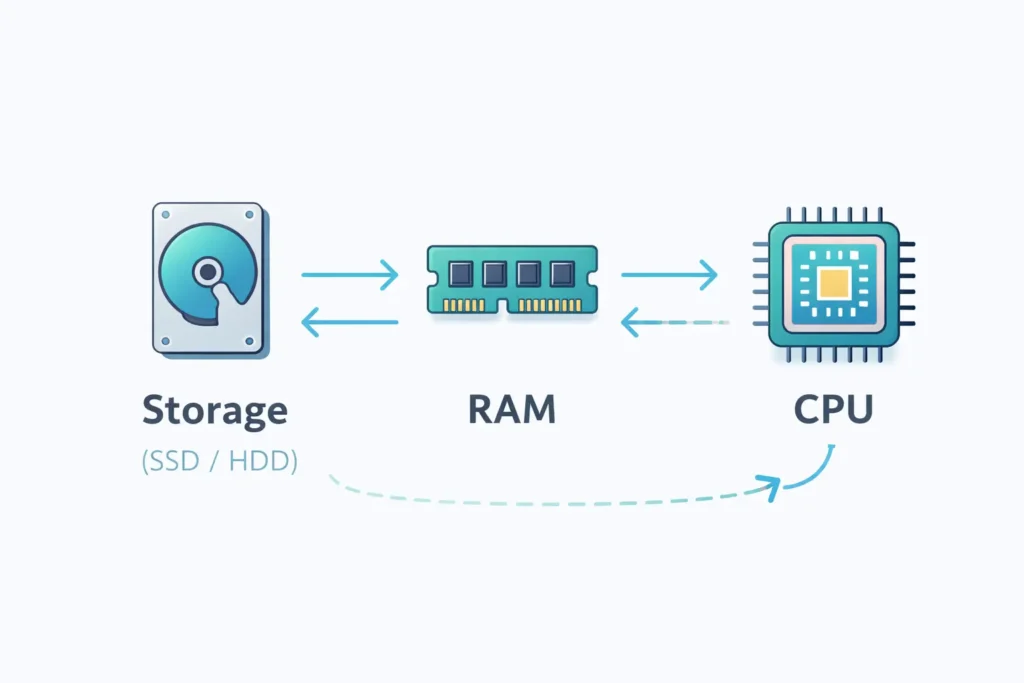
Think of a simple workflow like opening a large photo:
- Storage → RAM: The OS reads the photo file from storage into RAM.
- RAM → CPU: The CPU accesses the image data in RAM and performs operations (apply filter, render preview).
- CPU → GPU (optional): If using accelerated edits, the CPU offloads some work to the GPU.
Why slowdowns happen
- If storage is slow, loading files and booting is slow.
- If RAM is insufficient, the OS will page to storage, making everything sluggish—even on a fast SSD, paging is far slower than RAM.
- If CPU is overloaded, tasks take longer even if memory and storage are fine.
Quick troubleshooting order if system is slow
- Check storage, free space and health.
- Check RAM usage (are you hitting capacity?).
- Check CPU utilization and temperatures (thermal throttling can reduce performance).
Recommended specs by use-case (global, practical)
Below are general recommendations—prices and availability vary, so prioritize what fits your workload.
Everyday users / students
- RAM: 8–16 GB
- Storage: NVMe 256–512 GB (or SATA SSD 512 GB)
- CPU: Modern dual- or quad-core processor with good single-core performance
Creators (photo/video editing, design)
- RAM: 16–32 GB (or more for big projects)
- Storage: NVMe 1 TB+ for active projects; HDD or external drives for archives
- CPU: 6–12+ cores, good multi-thread performance; consider discrete GPU for GPU-accelerated tasks
Gamers
- RAM: 16 GB (sweet spot), 32 GB for multitasking/streaming
- Storage: NVMe SSD 512 GB–1 TB for OS and games
- CPU: 6–8 cores with strong single-thread performance; pair with a capable GPU
Budget buyers (where to compromise)
- Compromise on capacity, not speed: Prefer a smaller NVMe SSD over a large slow HDD for the boot drive; add external or secondary drives for storage.
- If you must choose, prioritize SSD and sufficient RAM over a high-end CPU for many mainstream tasks.
FAQs
Q: What’s the difference between RAM and storage?
A: RAM is fast, temporary memory used while programs run. Storage is permanent space where your files and apps live even when the power is off.
Q: Will adding more RAM make my computer faster?
A: Only if your system is currently running out of RAM. If you already have enough RAM for your tasks, adding more will have little effect.
Q: Is SSD worth it if I have an HDD?
A: Yes. An SSD (especially NVMe) dramatically improves boot times and app launches. Use SSD for OS/apps and HDD for bulk storage if needed.
Q: Do more CPU cores always mean better performance?
A: Not always. Some workloads scale well with cores (video encoding), while others rely on single-core speed (some games). Balance cores with clock speed and IPC for your use-case.
Q: Can I mix DDR4 and DDR5 RAM?
A: No. Motherboards support one generation; DDR4 modules won’t work in DDR5 slots and vice versa.